
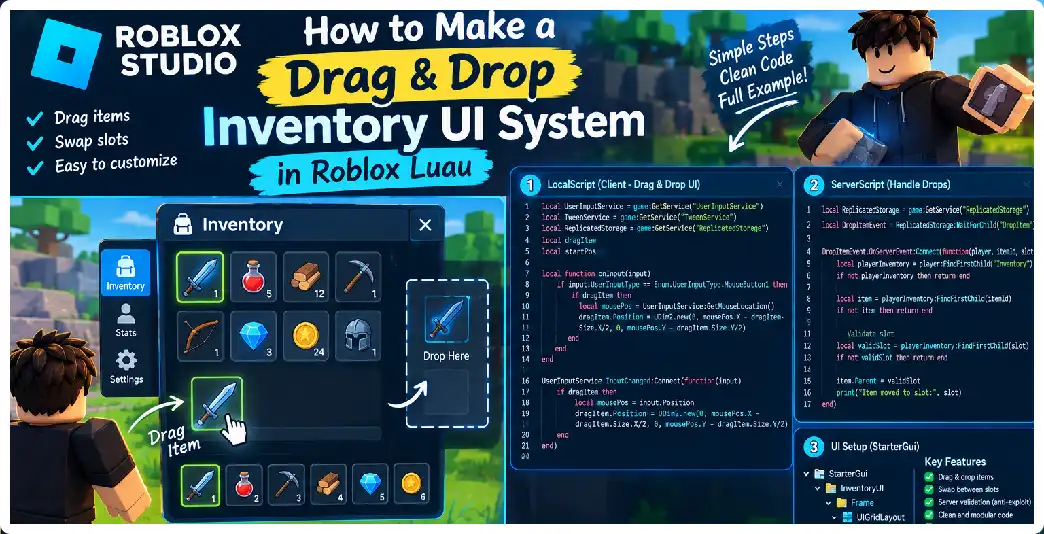
A drag-and-drop inventory is one of the most useful interface systems you can build for a Roblox game. Instead of forcing players to interact with inventory items through several buttons and menus, a drag-and-drop system lets them visually pick up an item, move it across the inventory, and drop it into another slot. The same basic concept can be extended to equipment screens, hotbars, storage chests, crafting interfaces, trading windows, loadout menus, and item-management systems. Roblox’s UI system provides the GuiObject input events needed to detect mouse, touch, and other interactions, while Luau provides the programming structures needed to manage the inventory state.
A good inventory system should not treat dragging as merely changing the position of an ImageButton. The visual movement is only one part of the system. A reliable implementation needs an inventory data model, a slot representation, input handling, drag-state management, target detection, validation, visual feedback, item swapping or stacking, cancellation behavior, and communication with the server when the inventory represents persistent or gameplay-important data. RemoteEvents provide asynchronous communication between the client and server, but the server should remain authoritative over important inventory changes.
The easiest way to understand the architecture is to divide the system into three layers. The first layer is the inventory data model, which describes what items the player actually owns. The second is the UI layer, which displays those items as slots. The third is the interaction layer, which handles dragging and dropping. Keeping these responsibilities separate prevents the drag code from becoming responsible for the entire inventory system. Luau’s type system is particularly useful here because item records and inventory structures can be explicitly typed, helping catch incorrect data relationships while the code is being written.
What a Drag-and-Drop Inventory Actually Does
A typical inventory might contain 20 or 40 slots:
+----+----+----+----+----+
| 🗡 | 🛡 | 🧪 | 🍎 |    |
+----+----+----+----+----+
| 💎 | 🪵 | 🪨 |    |    |
+----+----+----+----+----+
When the player presses an item and moves the pointer, the system creates or moves a visual representation of that item. When the player releases the input, the system determines which inventory slot is underneath the pointer. It can then swap the two items, move the item into an empty slot, combine compatible stacks, or reject the operation. GuiObject provides InputBegan, InputChanged, and InputEnded, making these events appropriate building blocks for custom drag interactions.
It is important not to rely on the deprecated GuiObject.Draggable property for a modern inventory implementation. A custom drag system gives you control over the drag threshold, visual clone, target highlighting, touch behavior, gamepad alternatives, and inventory-specific validation. The current UI API exposes the lower-level input events needed to implement these behaviors yourself.
Recommended Inventory Architecture
A clean project could look like this:
ReplicatedStorage
├── Shared
│   ├── InventoryTypes.lua
│   └── ItemDefinitions.lua
│
└── Remotes
    └── InventoryAction

ServerScriptService
└── InventoryService.server.lua

StarterPlayer
└── StarterPlayerScripts
    └── InventoryController.client.lua

StarterGui
└── InventoryGui
    ├── InventoryWindow
    │   └── Slots
    └── DragLayer
The client handles interaction and visual presentation, while the server maintains authoritative inventory state when the inventory affects real gameplay. A RemoteEvent can carry a request such as moving an item from slot 3 to slot 8. The server receives the firing player’s identity automatically as the first OnServerEvent argument.
The client should therefore think in terms of:
"I want to move item from slot 3 to slot 8."
rather than:
"Give me this item because I moved it."
The server should verify that the item exists, belongs to the player, that both slots are valid, and that the requested operation is permitted.
Designing the Inventory Data Model
Before creating the UI, define what an inventory slot contains.
A simple inventory could be:
--!strict

export type ItemStack = {
	Id: string,
	Amount: number,
}

export type Inventory = {
	[ number ]: ItemStack?,
}

return {}
Luau supports table types and type aliases, making structures such as inventory records easier to describe explicitly. Strict type checking can also identify incompatible assignments and function arguments before runtime.
A real inventory might contain:
local inventory = {
	[1] = {
		Id = "IronSword",
		Amount = 1,
	},

	[2] = {
		Id = "HealthPotion",
		Amount = 5,
	},

	[3] = nil,
}
The important distinction is that slot 3 does not contain an empty string representing an empty item. It contains nil, which makes the data model easier to reason about.
Creating Item Definitions
The inventory should not store every property of an item repeatedly.
Instead of storing:
{
	Id = "HealthPotion",
	Name = "Health Potion",
	Description = "Restores health",
	Icon = "...",
	MaxStack = 20,
	Weight = 1,
}
inside every inventory slot, store a compact item identifier:
{
	Id = "HealthPotion",
	Amount = 5,
}
Then maintain item definitions separately:
--!strict

export type ItemDefinition = {
	Name: string,
	Icon: string,
	MaxStack: number,
}

local Items: { [string]: ItemDefinition } = {
	HealthPotion = {
		Name = "Health Potion",
		Icon = "rbxassetid://0000000000",
		MaxStack = 20,
	},

	IronSword = {
		Name = "Iron Sword",
		Icon = "rbxassetid://0000000000",
		MaxStack = 1,
	},
}

return Items
This approach reduces duplicated data and makes it easier to update an item’s display information globally.
Building the Inventory UI
Create a ScreenGui containing the inventory window:
InventoryGui
└── InventoryWindow
    └── Slots
The Slots container can be a Frame or ScrollingFrame. A UIGridLayout is particularly useful because it automatically arranges sibling GUI objects into rows and columns. This means your code does not need to calculate every slot’s position manually.
A typical hierarchy could be:
InventoryGui
└── InventoryWindow
    ├── Title
    ├── CloseButton
    └── Slots
        └── UIGridLayout
If the inventory can contain many slots, a ScrollingFrame is useful because it provides a scrollable canvas and works with grid and list layouts. Its AutomaticCanvasSize property can also adjust the canvas based on child content.
Designing an Inventory Slot
Each slot should contain the visual elements required to represent an item.
For example:
Slot
├── ItemIcon
├── Amount
├── Selection
└── EmptyIndicator
The ItemIcon can be an ImageLabel or ImageButton. The quantity can be a TextLabel.
You may also add:
HoverHighlight
DropHighlight
CooldownOverlay
RarityBorder
LockIcon
These elements should represent state rather than contain the actual authoritative inventory data.
Generating Slots With Luau
Instead of manually creating 40 buttons, you can generate them from code.
--!strict

local SLOT_COUNT = 40

for slotIndex = 1, SLOT_COUNT do
	local slot = Instance.new("ImageButton")
	slot.Name = "Slot_" .. slotIndex
	slot.Size = UDim2.fromOffset(70, 70)
	slot.BackgroundTransparency = 0
	slot.LayoutOrder = slotIndex
	slot.Parent = slotsFrame
end
Because UIGridLayout controls the size and position of sibling objects, the slots can automatically form the inventory grid.
Rendering an Inventory Slot
Create a function responsible only for visualizing a slot.
local function renderSlot(slotGui: GuiObject, item)
	local icon = slotGui:FindFirstChild("ItemIcon")

	if not icon then
		return
	end

	if item then
		icon.Visible = true
		icon.Image = item.Icon
	else
		icon.Visible = false
		icon.Image = ""
	end
end
This function should not perform server requests or modify the actual inventory data. Its responsibility is presentation.
This separation becomes important when the server changes inventory state independently of the local UI.
Detecting the Start of a Drag
The first step is identifying when the player presses an item.
GuiObject.InputBegan provides an InputObject containing information about the input type, state, and position. It can detect mouse buttons and touch input, among other input types.
A basic implementation is:
local UserInputService = game:GetService("UserInputService")

slot.InputBegan:Connect(function(input)
	if input.UserInputType == Enum.UserInputType.MouseButton1
		or input.UserInputType == Enum.UserInputType.Touch then

		startDrag(slot, input)
	end
end)
For a production system, you should not immediately consider every click a drag. A better design records the initial position and waits until the pointer moves a small distance.
Adding a Drag Threshold
Without a threshold, a normal click can accidentally become a drag.
For example:
local DRAG_THRESHOLD = 8

local startPosition = input.Position
During movement:
local distance = (currentPosition - startPosition).Magnitude

if distance >= DRAG_THRESHOLD then
	dragging = true
end
This creates a more natural interaction because the player can click an item without immediately seeing a floating drag icon.
InputChanged supplies changing input information, including position and movement delta, which can be used to track this interaction.
Creating a Drag Visual
You generally should not move the actual inventory slot while dragging.
Instead, create a visual clone.
For example:
Slots
├── Slot_1
├── Slot_2
└── Slot_3

DragLayer
└── DragIcon
The original slot remains inside the grid, while DragIcon is displayed above the interface.
This avoids disrupting the UIGridLayout while the item is being dragged.
Why a Separate Drag Layer Helps
A UIGridLayout controls the position of its sibling elements. If you manually move a slot that belongs to the grid, the layout system can fight against your drag position because the layout owns positioning.
A separate drag layer avoids this conflict.
The architecture becomes:
InventoryWindow
├── Slots
│   ├── Slot_1
│   ├── Slot_2
│   └── Slot_3
│
└── DragLayer
    └── DragIcon
The grid remains stable while the drag representation moves freely above it.
Tracking the Pointer
A simple drag controller can use UserInputService.InputChanged.
local UserInputService = game:GetService("UserInputService")

local dragInput: InputObject?

UserInputService.InputChanged:Connect(function(input)
	if not dragging then
		return
	end

	if input.UserInputType == Enum.UserInputType.MouseMovement
		or input.UserInputType == Enum.UserInputType.Touch then

		dragInput = input
	end
end)
UserInputService provides global input events, while GuiObject provides input events scoped to individual UI elements.
Positioning the Drag Icon
The input position is given in screen coordinates. A drag icon can be positioned using pixel offsets.
For example:
dragIcon.Position = UDim2.fromOffset(
	input.Position.X,
	input.Position.Y
)
You will usually want an offset so that the icon does not sit directly underneath the pointer.
local OFFSET = Vector2.new(20, 20)

local position = input.Position + OFFSET
For a polished implementation, also account for the GUI’s screen inset and the dimensions of the drag image.
Detecting the Drop Target
When the player releases the mouse or touch, the system needs to identify what is underneath the pointer.
One useful technique is PlayerGui:GetGuiObjectsAtPosition(). It can return GUI objects located at a particular screen position, allowing a drag system to determine which inventory slot is beneath the pointer.
For example:
local playerGui = player:WaitForChild("PlayerGui")

local guiObjects = playerGui:GetGuiObjectsAtPosition(
	input.Position.X,
	input.Position.Y
)
You can then search the returned objects for a slot belonging to your inventory.
Identifying an Inventory Slot
Do not assume that the first GUI object returned is necessarily the target slot.
There may be:
- an item icon
- an amount label
- a highlight
- a transparent overlay
- another container
Instead, walk through ancestors until you find the slot container.
local function findSlot(guiObject: GuiObject): GuiObject?
	local current: Instance? = guiObject

	while current do
		if current:IsA("GuiButton")
			and current:GetAttribute("InventorySlot") == true then
			return current
		end

		current = current.Parent
	end

	return nil
end
Attributes can provide a simple way to mark UI objects as inventory slots.
Swapping Two Items
Suppose:
Slot 1 = Sword
Slot 2 = Potion
The player drags the sword onto slot 2.
A basic swap operation becomes:
Before:

1 → Sword
2 → Potion

After:

1 → Potion
2 → Sword
The client can request:
InventoryAction:FireServer("Swap", 1, 2)
The server then validates and performs the operation.
RemoteEvents provide asynchronous client-server communication, and the server receives the player who fired the event automatically.
Moving Into an Empty Slot
If:
Slot 1 = Sword
Slot 2 = Empty
then dragging the sword from slot 1 to slot 2 should result in:
Slot 1 = Empty
Slot 2 = Sword
The same server operation can support this without requiring a separate visual system.
Stacking Items
Suppose:
Slot 1 = Health Potion × 5
Slot 2 = Health Potion × 10
If the maximum stack is 20, dragging slot 1 onto slot 2 could produce:
Slot 1 = Empty
Slot 2 = Health Potion × 15
The server should calculate the result using its authoritative item definitions rather than accepting a client-supplied maximum stack value.
This prevents the client from inventing inventory quantities.
Partial Stack Transfers
A more advanced inventory can allow players to split stacks.
For example:
Potion × 20
could become:
Potion × 10
Potion × 10
The UI might open a quantity selector when the player performs a right-click or secondary interaction.
The inventory model should treat the operation as a data transaction rather than simply changing UI labels.
Client and Server Responsibilities
A secure architecture looks like:
CLIENT
↓
Player drags item
↓
Determine source/target slots
↓
Send request

SERVER
↓
Validate request
↓
Check player inventory
↓
Check slot indexes
↓
Check item ownership
↓
Perform move/swap/stack
↓
Send updated state

CLIENT
↓
Render result
The client is responsible for interaction. The server is responsible for authoritative inventory state.
RemoteEvents are designed for asynchronous communication across the client-server boundary, making them suitable for sending inventory action requests when a response is not required immediately.
Example Server Validation
A server handler could begin with:
InventoryAction.OnServerEvent:Connect(function(
	player,
	action,
	sourceSlot,
	targetSlot
)
	if action ~= "Swap" then
		return
	end

	if typeof(sourceSlot) ~= "number"
		or typeof(targetSlot) ~= "number" then
		return
	end

	if sourceSlot % 1 ~= 0
		or targetSlot % 1 ~= 0 then
		return
	end

	if sourceSlot < 1
		or sourceSlot > 40
		or targetSlot < 1
		or targetSlot > 40 then
		return
	end

	-- Perform authoritative operation.
end)
This is only the beginning. The server should also verify that the player has a valid inventory and that the requested action is permitted in the current game state.
Why the Client Should Not Be Trusted
A player can modify local UI state. If your inventory system trusts:
slot.ItemId.Value
or a client-supplied quantity without server verification, a modified client could potentially request invalid operations.
The correct principle is:
Client = request
Server = authority
The UI can optimistically display an interaction, but the server should determine whether the actual inventory state changes.
Handling Failed Drops
Suppose the player drags an item onto:
- a decorative frame
- an invalid area
- another UI panel
- outside the inventory
- a locked slot
The item should return to its original position visually.
You can implement:
if not targetSlot then
	cancelDrag()
	return
end
The drag layer disappears and the original slot is rendered from the current inventory state.
Highlighting Valid Drop Targets
A polished inventory should show where the item can be dropped.
For example:
Normal slot:
[ Sword ]

Hover target:
[ Sword ]  ← highlighted

Invalid target:
[ X ]       ← red/disabled
During dragging, repeatedly determine which slot is underneath the pointer and update its highlight.
Do not permanently modify the slot’s normal appearance. Instead, use a dedicated highlight object or state property.
Dragging Over Scrollable Inventories
Large inventories often use ScrollingFrame. This creates an additional challenge because the player’s pointer can move while the inventory is scrolling.
A ScrollingFrame has a CanvasPosition representing the current scroll offset, and its canvas can automatically adapt to its contents.
A robust drag system should determine targets using actual screen coordinates rather than assuming the slot’s position inside the unscrolled canvas.
This is one reason screen-coordinate hit testing is useful.
Mobile and Touch Support
A drag-and-drop inventory should not be designed exclusively for mouse users.
GuiObject supports touch-related input events, and UserInputService exposes touch input through its input system.
A touch-friendly drag flow can be:
Touch slot
↓
Wait for movement threshold
↓
Begin drag
↓
Move finger
↓
Highlight target
↓
Release finger
↓
Drop
Avoid requiring pixel-perfect precision on small mobile screens.
Mouse Versus Touch
Mouse input gives you a persistent cursor.
Touch input does not.
Therefore, a mobile inventory may benefit from a larger drag visual and larger slot hit areas.
A slot that looks 60 pixels wide on a desktop may need a substantially more forgiving interaction region on a small touchscreen.
Roblox’s UI system provides different display and input information that can be used to adapt interface behavior across devices.
Gamepad Support
A drag-only interface is incomplete if your game supports console controllers.
Roblox provides GUI navigation through GuiService.SelectedObject, and GuiObject.Selectable controls whether a GUI element can participate in gamepad selection. NextSelectionUp, NextSelectionDown, NextSelectionLeft, and NextSelectionRight can define navigation relationships.
For gamepad users, consider replacing physical dragging with an equivalent interaction:
Select item
↓
Press action button
↓
Move selection to destination
↓
Press action button
↓
Confirm move
This produces the same inventory operation without requiring a mouse pointer.
Keyboard Support
Keyboard users can also benefit from shortcuts.
For example:
1–9 → select hotbar slot
E   → equip
R   → rotate or use
Enter → confirm
Escape → cancel
Generic mouse and keyboard input can be captured through UserInputService, which exposes InputBegan, InputChanged, and InputEnded.
Responsive Inventory Design
A fixed-size inventory may look good on one monitor and terrible on another.
Roblox provides automatic sizing and responsive UI capabilities. AutomaticSize can adapt GUI objects to content, while ScrollingFrame.AutomaticCanvasSize can adapt the scrolling canvas.
A responsive inventory might use:
Desktop:
8 columns

Tablet:
6 columns

Phone:
4 columns
The actual number of columns can be changed based on the available display area.
Accessibility Considerations
A professional inventory should account for readability and motion preferences.
Roblox exposes user preferences such as preferred text size, preferred transparency, and reduced-motion settings through GuiService. These values can be used to adapt interface presentation.
For example, an interface should avoid making quantity text so small that it becomes difficult to read.
If the player prefers reduced motion, drag animations and slot transitions can be shortened or disabled.
Avoiding Common Drag Bugs
One common bug occurs when the player begins dragging an item and then moves outside the inventory.
The drag should continue until input ends rather than immediately canceling just because the pointer leaves the original slot.
Another common problem is accidentally triggering a button activation after a drag. Store a wasDragging flag and suppress the normal click action when a real drag occurred.
Managing Drag State
A useful state structure is:
type DragState = {
	Active: boolean,
	SourceSlot: number?,
	Input: InputObject?,
	StartPosition: Vector2?,
	CurrentPosition: Vector2?,
}
This makes the state explicit and easier to debug.
For example:
local dragState: DragState = {
	Active = false,
	SourceSlot = nil,
	Input = nil,
	StartPosition = nil,
	CurrentPosition = nil,
}
Luau’s type annotations can make state-heavy systems easier to maintain by identifying missing or incompatible fields.
Complete Simplified Client Flow
A simplified architecture might be:
local function beginPotentialDrag(slot, input)
	dragState.SourceSlot = getSlotIndex(slot)
	dragState.StartPosition = input.Position
	dragState.Input = input
end

local function updateDrag(position)
	if not dragState.SourceSlot then
		return
	end

	local start = dragState.StartPosition

	if not dragState.Active then
		if (position - start).Magnitude < DRAG_THRESHOLD then
			return
		end

		beginVisualDrag(dragState.SourceSlot)
		dragState.Active = true
	end

	updateDragVisual(position)
	updateTargetHighlight(position)
end

local function finishDrag(position)
	if not dragState.Active then
		resetDrag()
		return
	end

	local target = findSlotAt(position)

	if target then
		requestMove(
			dragState.SourceSlot,
			target
		)
	end

	resetDrag()
end
This design separates detection, visual dragging, target identification, and the actual inventory request.
Optimistic UI Versus Server Confirmation
You have two choices after the player drops an item.
The first is to immediately rearrange the UI and then wait for server confirmation.
The second is to send the request first and update the UI only when the server confirms the new inventory state.
For security-sensitive inventory systems, server-confirmed rendering is generally easier to reason about. The server remains the authoritative state, while the client simply reflects it.
For fast-feeling interfaces, you can use prediction carefully, but the UI must reconcile with the authoritative result if the request is rejected.
Rate Limiting Inventory Requests
Players should not be able to send thousands of inventory actions per second.
RemoteEvents have platform-level throttling, but that should not replace game-specific validation and rate limits.
The server can maintain a per-player timestamp:
local lastAction: {[Player]: number} = {}

local function allowed(player: Player): boolean
	local now = os.clock()
	local previous = lastAction[player] or 0

	if now - previous < 0.05 then
		return false
	end

	lastAction[player] = now
	return true
end
The appropriate limit depends on the game.
Testing the System
Test more than the normal case.
Try:
Empty → occupied
Occupied → empty
Sword → potion
Potion → potion
Full stack → full stack
Partial stack → partial stack
Invalid target
Locked slot
Dragging outside inventory
Dragging while inventory closes
Dragging while character dies
Dragging while server changes inventory
Very fast repeated drops
Touch input
Mouse input
Gamepad navigation
Different screen sizes
These scenarios reveal bugs that are invisible during a simple sword-to-empty-slot test.
Final Recommended Architecture
A mature inventory system can eventually look like:
ReplicatedStorage
├── Shared
│   ├── InventoryTypes.lua
│   ├── ItemDefinitions.lua
│   └── InventoryRules.lua
│
└── Remotes
    └── InventoryAction

ServerScriptService
└── InventoryService.server.lua

StarterGui
└── InventoryGui
    ├── InventoryWindow
    │   ├── Slots
    │   │   └── UIGridLayout
    │   └── DragLayer
    └── InventoryController.client.lua
The data model defines the inventory.
The server controls the authoritative state.
The client handles input.
The UI displays state.
The drag layer provides temporary visual feedback.
The RemoteEvent communicates requested operations.
That separation is the foundation of a scalable inventory.
Frequently Asked Questions
Can I make a drag-and-drop inventory entirely on the client?
You can build the visual interaction entirely on the client, but gameplay-important inventory state should be controlled by the server. RemoteEvents allow the client to request inventory operations from the server.
Should I use GuiObject.Draggable?
For a modern custom inventory, it is preferable to implement the interaction using current input events rather than depending on the deprecated Draggable property. InputBegan, InputChanged, and InputEnded provide the necessary control.
How do I detect what slot the player drops an item onto?
You can use screen coordinates and PlayerGui:GetGuiObjectsAtPosition() to inspect GUI objects under the pointer, then identify the inventory slot among those objects.
Can drag-and-drop work on mobile?
Yes. Roblox UI input supports touch interactions, although the interaction should be designed with larger hit areas and appropriate touch behavior.
Can I support gamepads?
Yes. Gamepad navigation can use selectable GUI elements and GuiService.SelectedObject, with explicit selection relationships when necessary.
Should the inventory use a UIGridLayout?
A grid layout is a natural choice for traditional slot inventories because it automatically arranges sibling GUI elements into rows and columns.
Should the inventory use a ScrollingFrame?
If the number of slots can exceed the visible area, a ScrollingFrame is useful because it provides a scrollable canvas and supports grid layouts.
Should the client send the entire inventory to the server?
No. It is generally cleaner to send a specific requested operation such as source slot and destination slot and let the server calculate the authoritative result.
Can items stack automatically?
Yes. The server can compare item IDs, maximum stack sizes, and current quantities before deciding whether a drop should merge stacks.
Should I use Luau strict typing?
For larger inventory systems, strict typing can help identify data and function mistakes during development. Luau supports --!strict and typed tables, functions, and aliases.
What happens if a player drops an item outside the inventory?
The usual behavior is to cancel the drag and restore the item visually to its original slot.
What happens if the destination slot is occupied?
You can implement swapping, stacking, rejection, or a context-specific rule.
Conclusion
A drag-and-drop inventory system is much more than moving an image around the screen. The most reliable implementation separates inventory state from UI state and treats dragging as an interaction that ultimately requests a server-side inventory operation.
The client should detect input, create the drag visual, identify potential targets, highlight valid destinations, and request an operation. The server should validate the operation and update authoritative inventory data. The UI should then render the resulting state. RemoteEvents provide the communication mechanism between these layers.
For a modern Roblox inventory, use GuiObject input events for custom drag detection, a dedicated drag layer for the floating item visual, UIGridLayout for slot organization, ScrollingFrame for larger inventories, GetGuiObjectsAtPosition() for drop-target detection, and typed Luau structures for the inventory model.
Once this foundation is working, the same architecture can be expanded into equipment systems, trading interfaces, storage chests, crafting grids, loot windows, hotbars, character loadouts, and item-transfer systems.