
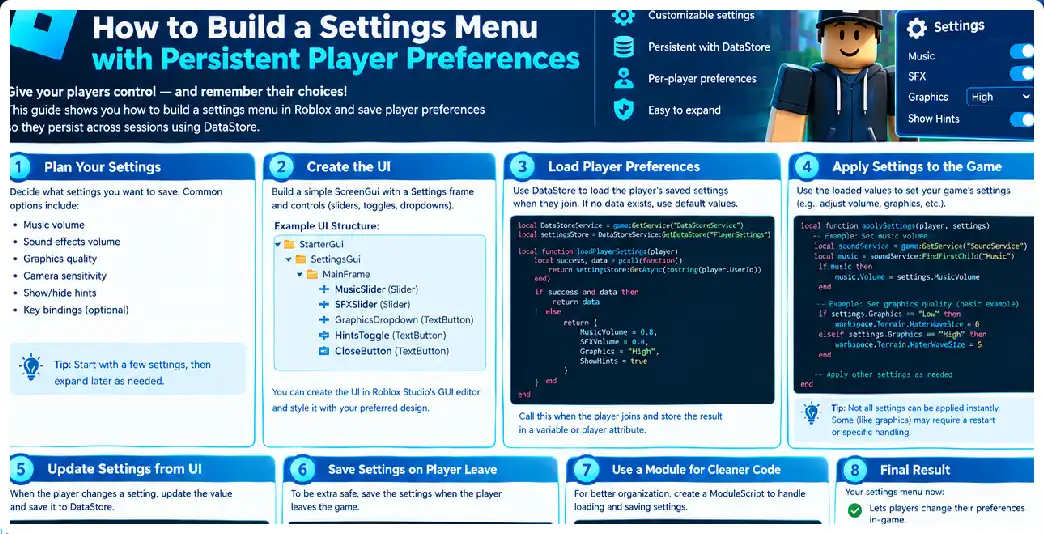
A settings menu is one of the most useful interfaces you can add to a Roblox experience. It allows players to customize how the game behaves for them without changing the experience for everyone else. Common settings include music volume, sound effects, graphics preferences, camera behavior, subtitles, notifications, interface visibility, vibration, sensitivity, and other personal choices. A well-designed settings system should do more than display buttons: it should remember a player’s choices and restore them automatically the next time that player joins. Persistent player preferences are therefore a combination of user interface design, client-server communication, in-memory state management, and persistent data storage.
The most important architectural principle is to separate the settings interface from the persistent storage system. The buttons, toggles, sliders, and labels belong to the client-side user interface, while persistent player data should be handled by the server. This separation prevents the client from directly controlling persistent storage and gives the server authority over what is actually saved. Persistent data access is restricted to server-side scripts, which is an important security boundary for multiplayer experiences.
A useful mental model is to think of the system as four layers. The first layer is the settings menu that players see. The second is the client-side settings controller that reacts to player interaction. The third is the server-side settings manager that validates requests and maintains the player’s current settings. The fourth is the persistent data layer that loads and saves those settings. Keeping these layers separate makes the system easier to debug, expand, and maintain.
What Persistent Player Preferences Actually Mean
A persistent preference is simply a value that should survive the player’s current session. Suppose a player disables background music and enables subtitles. If those values are only stored in a LocalScript, they disappear when the player leaves. When the player returns, the game has no knowledge of the previous choices. Persistent storage solves this problem by saving the preference against a stable player identifier and loading it again when the player joins.
A typical preference record might look conceptually like this:
{
    MusicVolume = 0.5,
    EffectsVolume = 0.8,
    Subtitles = true,
    ScreenShake = false,
    Notifications = true,
    CameraSensitivity = 1.0
}
This structure is deliberately simple. A settings system should store only information that genuinely needs to persist. Temporary interface states, such as whether the settings window is currently open, normally do not belong in persistent player data. The persistent record should represent player choices rather than the current visual state of the menu.
A single player record can contain many related preferences. Organizing related settings into one player data record can reduce unnecessary requests and allows related values to be updated together. Current platform guidance recommends keeping a small number of data stores and, where appropriate, using one player record rather than creating a separate data store for every setting.
Planning the Settings Menu Before Building It
Before opening the editor, decide which settings your experience actually needs. A simple game might require only music, sound effects, subtitles, and camera shake. A larger experience might have separate categories for audio, graphics, controls, gameplay, accessibility, and notifications.
Avoid creating dozens of settings simply because you can. Every additional setting introduces UI states, validation rules, testing requirements, and potentially persistent data. A smaller settings menu with clear controls is generally easier for players to understand than an enormous menu containing options that have little practical effect.
A useful structure could be:
Settings
│
├── Audio
│   ├── Music Volume
│   └── Effects Volume
│
├── Gameplay
│   ├── Camera Shake
│   └── Tutorials
│
├── Accessibility
│   ├── Subtitles
│   └── Reduced Effects
│
└── Controls
    └── Sensitivity
This organization also makes future development easier because each category can have its own controller functions.
Creating the Roblox UI
The visible settings interface can be built using a ScreenGui placed under StarterGui. On-screen Roblox interfaces contain objects such as frames, labels, buttons, and input controls. A ScreenGui is copied into the player’s interface when the character joins, allowing LocalScripts to control the menu on that player’s device.
A basic hierarchy might look like this:
StarterGui
└── SettingsGui
    ├── OpenButton
    └── SettingsFrame
        ├── CloseButton
        ├── Audio
        │   ├── MusicToggle
        │   └── EffectsToggle
        ├── Gameplay
        │   ├── ScreenShakeToggle
        │   └── SubtitlesToggle
        └── ResetButton
TextButtons and ImageButtons provide activation events that can respond to mouse, touch, and other supported input methods. Using Activated is often preferable to writing separate click logic for different device types because it gives the UI a more consistent interaction model.
For mobile compatibility, avoid designing the settings menu exclusively around a mouse. Buttons should have reasonable touch targets, important controls should remain readable on smaller screens, and the menu should not depend on hover-only behavior.
Creating Default Settings
The first important script is a table containing the default values.
local DEFAULT_SETTINGS = {
    MusicVolume = 1,
    EffectsVolume = 1,
    Subtitles = true,
    ScreenShake = true,
    Notifications = true,
}
Defaults are essential because a player may join for the first time without an existing saved record. They are also useful when you introduce a new setting after your game has already launched.
For example, imagine your original game stores:
{
    MusicVolume = 1,
    EffectsVolume = 1
}
Several months later, you introduce:
Subtitles = true
Older players will not automatically have that property in their stored data. Your loading system should therefore merge stored preferences with the current defaults instead of assuming every saved record already contains every field.
A safe merge approach looks like:
local function applyDefaults(saved)
    local result = {}

    for key, defaultValue in pairs(DEFAULT_SETTINGS) do
        if saved and saved[key] ~= nil then
            result[key] = saved[key]
        else
            result[key] = defaultValue
        end
    end

    return result
end
This pattern also makes future migrations easier.
Loading Player Preferences
The server should obtain the persistent record when the player joins. DataStoreService provides persistent storage for information that should survive across sessions. Data-store operations are network operations and can fail, so production systems should protect calls with error handling.
A simplified example is:
local DataStoreService = game:GetService("DataStoreService")
local Players = game:GetService("Players")

local SettingsStore = DataStoreService:GetDataStore("PlayerSettings")

local DEFAULT_SETTINGS = {
    MusicVolume = 1,
    EffectsVolume = 1,
    Subtitles = true,
    ScreenShake = true,
}

local playerSettings = {}

local function loadSettings(player)
    local key = "User_" .. player.UserId

    local success, data = pcall(function()
        return SettingsStore:GetAsync(key)
    end)

    if success then
        playerSettings[player.UserId] = applyDefaults(data)
    else
        warn("Could not load settings for " .. player.Name)
        playerSettings[player.UserId] = table.clone(DEFAULT_SETTINGS)
    end
end

Players.PlayerAdded:Connect(loadSettings)
This is an educational foundation rather than a complete production data system. A production experience should also have explicit failure handling so that a temporary storage problem does not accidentally cause valid player preferences to be overwritten by defaults.
Why the Client Should Not Save the Data Store
One of the most important rules is that the client should not receive direct access to persistent storage. The server should perform data-store operations and decide whether incoming requests are valid. This is especially important because a player’s client cannot be treated as trusted in a multiplayer environment.
For example, this would be the wrong architecture:
Player
   ↓
LocalScript
   ↓
DataStoreService
The preferred architecture is:
Player
   ↓
Settings UI
   ↓
LocalScript
   ↓
RemoteEvent
   ↓
Server Script
   ↓
Server Memory
   ↓
DataStoreService
The client can request a change, but the server decides whether the change is allowed.
Connecting the Menu to the Server
A RemoteEvent is useful for asynchronous client-server communication. It allows a client to send a request to the server without requiring the server to yield while waiting for a response. RemoteEvents are also useful for sending server-side state back to the client.
Create a folder such as:
ReplicatedStorage
└── SettingsRemotes
    ├── RequestSettings
    └── SettingsUpdated
Both objects can be RemoteEvent instances.
The client could request a change with:
RequestSettings:FireServer("MusicVolume", 0.5)
The server then receives the player automatically:
RequestSettings.OnServerEvent:Connect(function(player, settingName, value)
    -- Validate the request
end)
Never assume the value supplied by the client is valid. A malicious client could send a setting name that does not exist or a value outside the range you intended.
Validating Settings
A simple validation function can protect the settings system:
local allowedSettings = {
    MusicVolume = "number",
    EffectsVolume = "number",
    Subtitles = "boolean",
    ScreenShake = "boolean",
}

local function isValidSetting(name, value)
    local expectedType = allowedSettings[name]

    if not expectedType then
        return false
    end

    if typeof(value) ~= expectedType then
        return false
    end

    if name == "MusicVolume" or name == "EffectsVolume" then
        return value >= 0 and value <= 1
    end

    return true
end
The server can then reject invalid requests.
RequestSettings.OnServerEvent:Connect(function(player, name, value)
    if not isValidSetting(name, value) then
        return
    end

    local settings = playerSettings[player.UserId]

    if settings then
        settings[name] = value
    end
end)
This is important even for apparently harmless preferences. Server validation creates a consistent boundary between user-interface requests and authoritative game state.
Applying Settings Locally
Not every setting needs server-side logic after it has been validated. For example, music volume is primarily a client-side presentation preference.
The server can send the player’s loaded settings to the client:
SettingsUpdated:FireClient(player, playerSettings[player.UserId])
The LocalScript then applies the values.
local function applySettings(settings)
    -- Update interface and client-side systems here.
end

SettingsUpdated.OnClientEvent:Connect(applySettings)
For a volume setting, your local audio controller can use the value to adjust appropriate sound groups. The persistent record stores the preference, while the client turns that preference into actual presentation behavior.
This separation is useful because the server does not need to manipulate every visual or audio object simply because a player changes a local preference.
Saving Changes
A common beginner mistake is to call SetAsync() every time the player clicks a settings button. That can generate unnecessary persistent-storage traffic, particularly when a player rapidly changes sliders.
A better approach is to keep the player’s current settings in server memory and save them periodically, when the player leaves, during important checkpoints, and when the server shuts down. Current guidance specifically recommends buffering player data in memory rather than making a persistent request for every change.
For updates where multiple servers might potentially modify the same record, UpdateAsync() is generally preferred because it evaluates the latest stored value before producing the new value. Direct overwrites can cause inconsistencies when concurrent writes occur.
An example save function could be:
local function saveSettings(player)
    local data = playerSettings[player.UserId]

    if not data then
        return
    end

    local key = "User_" .. player.UserId

    local success, err = pcall(function()
        SettingsStore:UpdateAsync(key, function()
            return data
        end)
    end)

    if not success then
        warn("Failed to save settings:", err)
    end
end
The callback supplied to UpdateAsync() must not yield, so avoid putting waits or unrelated asynchronous operations inside that callback.
Saving When the Player Leaves
When a player leaves, save the in-memory record.
Players.PlayerRemoving:Connect(function(player)
    saveSettings(player)
    playerSettings[player.UserId] = nil
end)
This handles normal departures, but it should not be the only save mechanism.
Saving During Server Shutdown
A server can shut down while players are still present. Roblox provides BindToClose() for performing shutdown-related work, including saving unsaved player data.
A simplified pattern is:
game:BindToClose(function()
    for _, player in ipairs(Players:GetPlayers()) do
        saveSettings(player)
    end
end)
Production systems need to consider the amount of data being saved and the time available during shutdown. A robust data manager should also coordinate concurrent saves rather than blindly launching unlimited requests.
Adding a Toggle
A toggle can use a button to switch between two states.
local enabled = true

Toggle.Activated:Connect(function()
    enabled = not enabled

    Toggle.Text = enabled and "ON" or "OFF"

    RequestSettings:FireServer("ScreenShake", enabled)
end)
The important part is that the UI should represent the actual loaded state. Do not automatically assume that every toggle starts enabled. When the player joins, the client should first receive the stored preference and update the controls accordingly.
Adding a Volume Slider
A volume slider requires slightly more logic because the player can select a continuous range.
You might represent volume internally as a number from 0 to 1:
local volume = 0.75
The UI can display:
75%
while the actual audio controller receives:
0.75
The server should enforce the allowed range.
if name == "MusicVolume" then
    value = math.clamp(value, 0, 1)
end
For a slider, avoid saving every tiny movement. Instead, update the local preview immediately and send a finalized value when the player releases the slider or after a short debounce period.
Resetting Settings
A useful settings menu should normally have a reset option.
The reset process should not simply delete the player’s entire persistent record. Instead, restore the settings fields to the current default values.
local function resetSettings(player)
    playerSettings[player.UserId] = table.clone(DEFAULT_SETTINGS)

    SettingsUpdated:FireClient(
        player,
        playerSettings[player.UserId]
    )
end
This distinction becomes extremely important as the game grows. A player’s settings should be reset without accidentally deleting inventory, progress, purchases, achievements, or other unrelated data.
Handling New Settings After Launch
Suppose your first version contains:
MusicVolume
EffectsVolume
Later you add:
Subtitles
ReducedEffects
Existing players will have an older data structure. Your loading process should merge the old data with defaults.
This is essentially a lightweight migration strategy. For larger games, you can add a data version:
{
    Version = 2,

    Settings = {
        MusicVolume = 1,
        EffectsVolume = 1,
        Subtitles = true
    }
}
When the structure changes, your loader can detect the version and transform older data into the new format.
Organizing the Project
A clean project could look like:
ReplicatedStorage
└── SettingsRemotes
    ├── RequestSettings
    └── SettingsUpdated

ServerScriptService
└── SettingsServer

StarterGui
└── SettingsGui
    ├── OpenButton
    └── SettingsFrame
        ├── CloseButton
        ├── MusicToggle
        ├── EffectsSlider
        ├── SubtitlesToggle
        ├── ScreenShakeToggle
        └── ResetButton

StarterPlayer
└── StarterPlayerScripts
    └── SettingsClient
This organization makes it easier to replace the visual design without rewriting the storage system.
Testing Persistent Settings
Do not test persistence only by clicking buttons in a single development session. You need to test the complete lifecycle.
Test the following sequence:
- Join with no existing data.
- Confirm defaults appear.
- Change several settings.
- Leave.
- Rejoin.
- Confirm the settings return.
- Add a new setting to the data structure.
- Test an old player record.
- Send invalid values from the client.
- Simulate a save failure.
- Test server shutdown.
- Test multiple players simultaneously.
Studio data-store access requires deliberate configuration, and using live production data while testing can be dangerous because Studio can access the same persistent data. Use a controlled testing strategy and separate development data from production data where appropriate.
Supporting PC, Mobile, and Console
A settings menu should not assume that every player has a mouse and keyboard. Roblox UI supports multiple input environments, so controls should be designed around activation rather than mouse-specific events.
For mobile players, use larger buttons and avoid placing controls too close together. For controller users, ensure the interface can be navigated using the appropriate selection and focus mechanisms. For PC players, keyboard shortcuts can optionally open the settings menu.
The persistent data itself does not need to change based on the player’s country. The same underlying settings architecture can be used for players in the United States, Canada, the United Kingdom, and other supported regions. What may need adjustment is localization, spelling, accessibility presentation, and platform-specific UI behavior.
Accessibility Considerations
Settings are particularly important for accessibility. Consider options such as subtitles, reduced visual effects, screen shake, camera sensitivity, text size, colour-related visual assistance, and audio controls.
The important principle is that accessibility preferences should actually affect the relevant game systems. A checkbox labelled “Reduced Effects” should not merely change its own appearance; the client should use that preference to disable or reduce appropriate effects.
A good settings architecture makes this easy because each preference has a clear owner. The UI changes the setting, the server persists the preference, and the relevant client system applies it.
Common Mistakes
One of the biggest mistakes is putting the entire system inside one enormous LocalScript. This makes UI code, storage logic, validation, and gameplay behavior tightly coupled.
Another mistake is saving every click immediately. Persistent storage should not be treated like a high-frequency local variable. Keep active state in memory and save deliberately. Current data-store guidance specifically recommends reducing unnecessary requests and buffering player data in memory.
A third mistake is trusting client input. The client should be treated as an input source, not the final authority. Remote communication should be validated by the server.
A fourth mistake is using player names in data-store keys. Stable identifiers such as UserId are appropriate because usernames and display names can change. Static key patterns also make data management more predictable.
Final Architecture
The complete flow should look like this:
Player joins
     ↓
Server loads saved preferences
     ↓
Defaults are merged
     ↓
Server stores preferences in memory
     ↓
Server sends preferences to client
     ↓
Settings UI displays them
     ↓
Player changes a setting
     ↓
Client sends request
     ↓
Server validates request
     ↓
Server updates memory
     ↓
Client applies visual/audio change
     ↓
Server periodically saves
     ↓
Player leaves / server shuts down
     ↓
Final save
This architecture provides a strong foundation for a persistent settings system without making the UI responsible for data integrity.
Frequently Asked Questions
Can I save Roblox settings directly from a LocalScript?
Persistent data should be handled by server-side code rather than directly from a LocalScript. The client can request a change, while the server validates and saves the preference.
Should I use one DataStore for every setting?
Usually, no. Related player preferences can generally be stored together in a player record, provided the resulting record remains appropriately sized and within service limits.
Should settings save every time the player clicks a button?
It is usually better to update an in-memory server record and save deliberately rather than performing a persistent write for every interaction.
Should I use SetAsync or UpdateAsync?
When the update depends on the existing stored value or concurrent writes are possible, UpdateAsync() is generally preferred. SetAsync() is useful when replacing a value does not depend on its previous state.
Can I save graphics settings?
Yes, if the setting represents a player preference that your game can apply locally. The persistent record can store the preference while the client applies the appropriate visual behavior.
Can players have different settings?
Yes. Each player’s preference record is associated with that player’s stable identifier, allowing different players to maintain different choices.
What happens if a new setting is added later?
Use default-value merging or a versioned data structure so existing records receive the new preference without losing older data.
Should I use RemoteFunction for settings?
A RemoteEvent is often appropriate for asynchronous settings updates. RemoteFunctions yield while waiting for a response and therefore are not necessary for many simple UI update operations.
How do I prevent invalid settings?
Validate every client request on the server. Check the setting name, expected type, allowed range, and any additional game-specific rules before changing the stored state.
Can this system work on mobile and console?
Yes. Roblox’s UI framework supports multiple input environments, but the menu should be designed and tested specifically for different screen sizes and interaction methods.
Can I add a Reset to Default button?
Yes. Reset only the settings record to current defaults rather than deleting the player’s complete persistent profile.
Do settings persist between different servers?
Yes. Persistent data is associated with the experience’s data stores rather than a particular server session.
What is the most important rule?
Treat the client as the presentation and input layer, while keeping persistent state and validation on the server.